Visa Invitation Letters
Collect visa requests, design your invitation letter, and send it to attendees as a PDF.
Attendees travelling from abroad often need an invitation letter for their visa application. Event Vault collects their passport details, fills them into a letter in your own design, and emails it to them as a PDF. Access it by selecting Visa from the sidebar under the Guests & Tickets section. The page has three tabs: REQUESTS, LETTER and EMAIL.
flowchart TD
    F["An attendee ticks<br><b>I require a visa</b><br><b>invitation letter</b><br>on your form"] --> O["Their order<br>is paid"]
    O --> R["A request on the<br><b>REQUESTS</b> tab"]
    M["You press<br><b>ADD REQUEST</b>"] --> R
    R --> L["The letter is filled in<br>from your <b>LETTER</b> design"]
    L --> E["Emailed to them<br>as a PDF"]
    L --> D["Or downloaded,<br>to send yourself"]
    E --> G["Delivery and opens<br>in the email logs"]
Collecting Requests
Switch on Enable Visa Section under Visa / Travel Documents in your Registration Form. Attendees who tick I require a visa invitation letter are asked for their name as it appears on their passport, their passport number and their nationality, and their request arrives on the REQUESTS tab when their order is paid. You can add your own questions to the visa fields as well.
To add someone who did not register through the form, press ADD REQUEST and fill in their attendee, passport and accommodation details yourself.
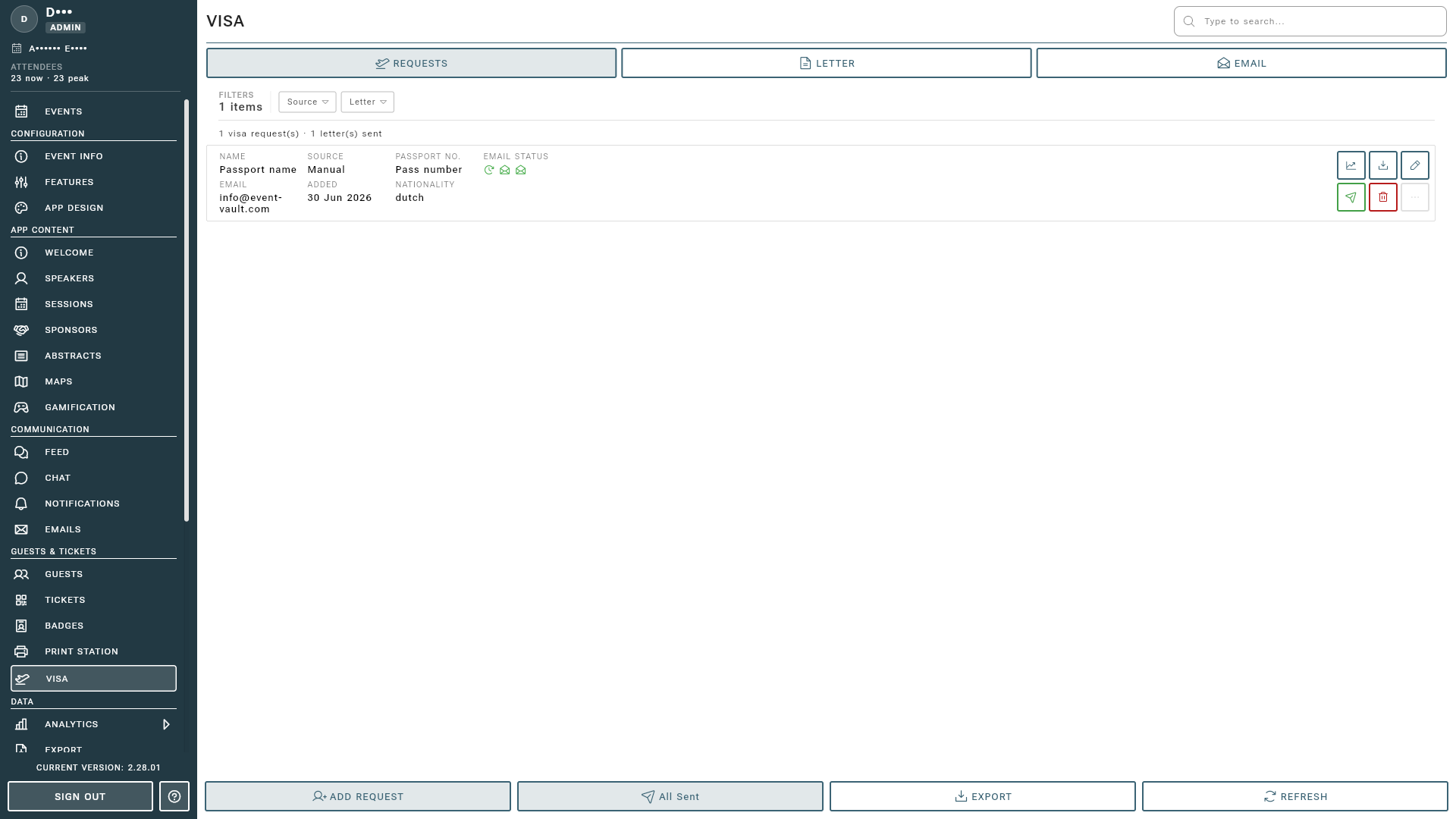
Requests
Each request shows the attendee, their passport details, where they are staying and the status of their letter. The Source says whether it came from an order or was added by hand.
- Send visa letter emails the letter to that attendee, and Resend letter sends it again.
- SEND PENDING sends the letter to everyone who has not received one yet. Requests with incomplete passport details are skipped, and the confirmation tells you how many.
- Download visa letter PDF gives you the letter without emailing it, for example to send it by post.
- View email logs shows whether the email was delivered and opened.
- EXPORT downloads all requests as a spreadsheet.
Designing the Letter
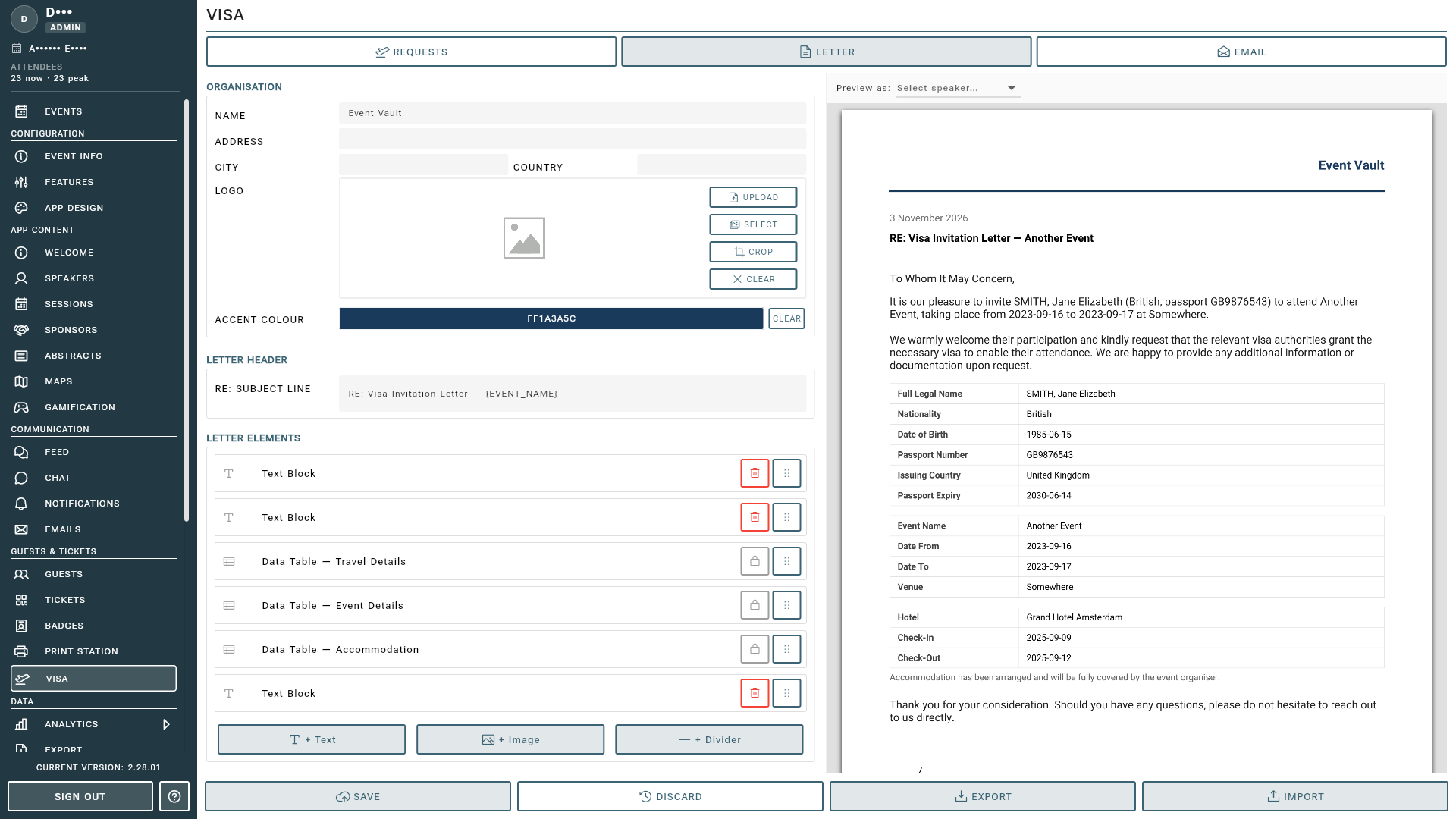
The LETTER tab is where you design the letter itself, with a live preview of the PDF beside it.
- Organisation: your organization’s name and address, printed in the letter.
- Letter Header: your logo at the top of the page.
- Letter Elements: the body of the letter, built from Text, Image and Divider blocks. Use INSERT PLACEHOLDER to add the attendee’s own details, such as their passport name and number, which are filled in for every letter.
- Signatories: the people who sign the letter, with their title and a signature image.
- Typography and Layout: fonts, colours and spacing.
Press SAVE to keep your changes. EXPORT and IMPORT save a letter design to a file, so you can reuse it for your next event.
The Email
The EMAIL tab shows the email that delivers the letter, with the PDF attached. It is sent automatically and its text cannot be changed, but it carries the sender and branding you set on the Emails page.
Tips
- Open visa requests well ahead of your event: embassies can take weeks to process an application.
- Ask attendees to enter their name exactly as it appears on their passport. A letter with a different spelling may not be accepted.
- Keep the letter to one page, with your organization’s details and a clear signature.