Connectors
Import your guests and their tickets from a registration platform, kept up to date every hour.
If your guests register on a platform such as Aanmelder or Salesforce, you do not have to keep two guest lists. Connect your account once, choose what each event imports, and Event Vault keeps the event’s guests and tickets up to date every hour, with the platform’s own QR codes on the tickets.
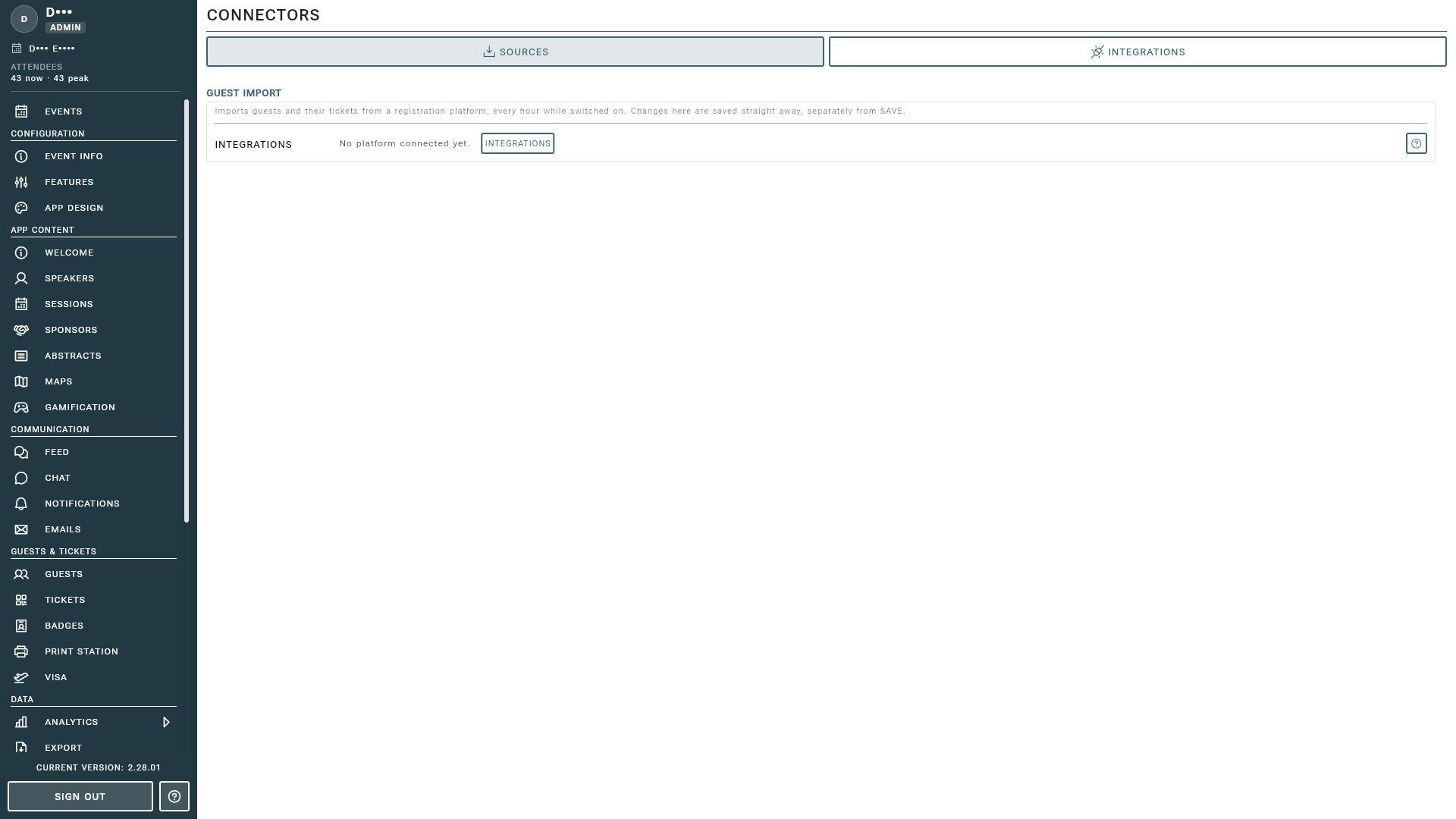
Access it by selecting Connectors from the sidebar under the Integrations section. The page has two tabs:
- SOURCES: what this event imports, and from where.
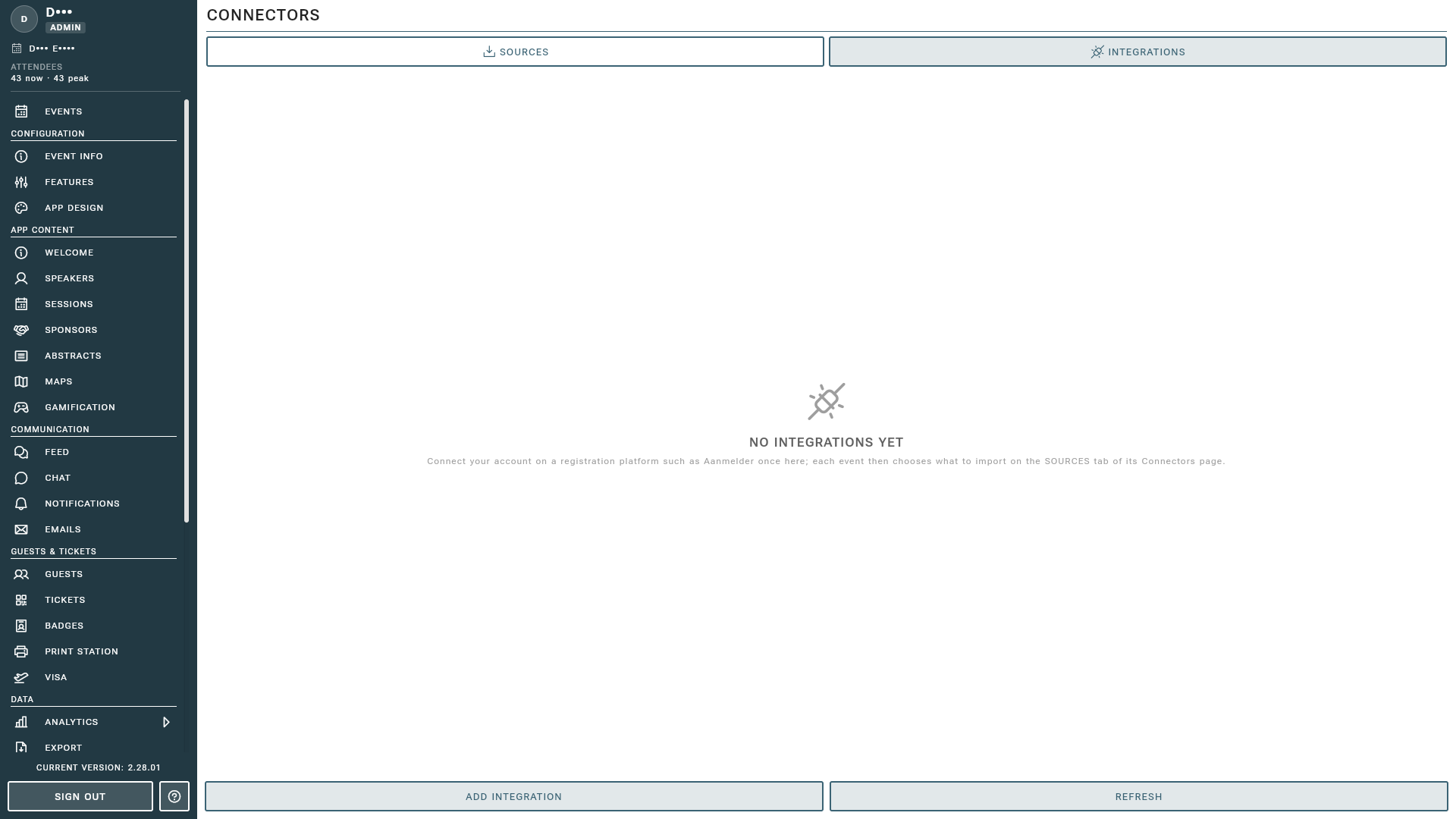
- INTEGRATIONS: your organization’s accounts on registration platforms, and their keys.
Adding an Integration
An integration is your account on a registration platform. It is set up once for your whole organization, and every event can then import from it. Only administrators can manage integrations, since they hold your platform keys.
- Open the INTEGRATIONS tab and press ADD INTEGRATION.
- Choose the Platform and give the integration a Name, for example “Aanmelder - main event”. This is the name your team picks when they set up an event’s import.
- Press SET KEY in the integration’s dialog and enter the key from your platform. It is tested before it is saved.
Your key is safe with us: it is stored encrypted and nobody can read it back, not you and not Event Vault support. The integration only ever shows the last characters of the key and when it was last checked. Use TEST to check it again, REPLACE KEY when you have a new one, and REMOVE KEY to stop all imports from it.
Importing Guests
On the SOURCES tab, press EDIT IMPORT to choose where this event’s guests come from.
- ADD SOURCE: pick the integration, and the event or form on the platform to read from. One event can import from several sources, for example two registration forms.
- Ticket: the ticket every guest from this source gets, for example ENTRY. Platforms that know ticket types, such as Salesforce, can give each guest their own tickets instead: leave the field empty for that.
- MAP FIELDS: name, email and the QR code are always read. For company, job title, country and the rest, choose the form question that holds them, or leave them on Detect. Defaults fill a field for guests whose form gives no answer, for example your company name for a staff list.
- Import Every Hour: keep the event in step automatically. Switched off, nothing is imported until someone presses IMPORT NOW.
- Removal Limit: a safety net, explained below.
Press PREVIEW to see exactly what an import would change without writing anything, then IMPORT NOW to run it.
What an Import Changes
Every hour, each guest on the registration platform is matched to your guest list by email address:
flowchart TD
    S["A guest on the<br>registration platform"] --> Q{"Attending?"}
    Q -- "Yes, and new<br>to this event" --> N["<b>New guest</b><br>added with their ticket"]
    Q -- "Yes, already<br>on your list" --> U["<b>Updated</b><br>empty fields filled,<br>tickets kept in step"]
    Q -- "Cancelled" --> X{"Did the import<br>add them?"}
    X -- "Yes" --> R["<b>Removed</b><br>with their imported tickets"]
    X -- "No" --> L
    Q -- "Not finished paying,<br>or taken off the list" --> L["<b>No longer attending</b><br>the event leaves their app,<br>their record is kept"]
    L -- "Attending again" --> B["<b>Back on the list</b><br>access and ticket return"]
    R -.- M["Removals above the<br><b>Removal Limit</b> wait<br>until you press<br><b>IMPORT ANYWAY</b>"]
    L -.- M
    classDef note fill:#ffffff,stroke:#3b6374,stroke-dasharray:5 4
    class M note
Every preview and import lists the guests it changed, grouped by what happened:
- New guests: added to the guest list with their ticket.
- Updated: empty profile fields filled in, or tickets changed.
- No longer attending: someone who cancelled, was taken off the list, or has not finished paying. Their record stays (leads, reviews, attendance), but the event leaves their app and their imported tickets are removed. Attending again brings it all back.
- Back on the list: attending again, with their ticket.
- Added by hand: guests you added yourself who are also on the registration list. The import leaves them as they are.
A few things an import never does:
- It never overwrites what a guest changed. A field the guest edited or cleared on their own card stays the way they left it.
- It never touches guests and tickets from elsewhere, such as your ticket shop, the API or guests you added by hand.
- It never gives back access you revoked. A guest whose app access you revoked on the guest list stays revoked, even while they are on the registration list.
- It never sends emails. Invite your imported guests from the guest list when you are ready.
The Removal Limit
If one import would take the event away from more guests than the limit (20% by default), nothing is removed and the page tells you so. This protects your guest list from a mistake on the platform side, such as an emptied form or a wrong key. When the removals are correct, press IMPORT ANYWAY to run that one import without the limit.
Data Import
Some organizers publish their programme, speakers or abstracts as a file on their own website. Event Vault can import those files and keep the event in step with them, with a report of anything that needs a correction in the source. This is set up for your organization by our team: contact support if your programme lives somewhere else.
Tips
- Run PREVIEW after setting up a new source, before the first import: it shows what each guest will look like.
- Check MAP FIELDS whenever the registration form changes, so a renamed question still fills the right field.
- Keep Import Every Hour on during registration, and switch it off once the list is final if you want it to stay as it is.