Features
Switch the app's features on and off, choose where they show in the app's menu, and set their options.
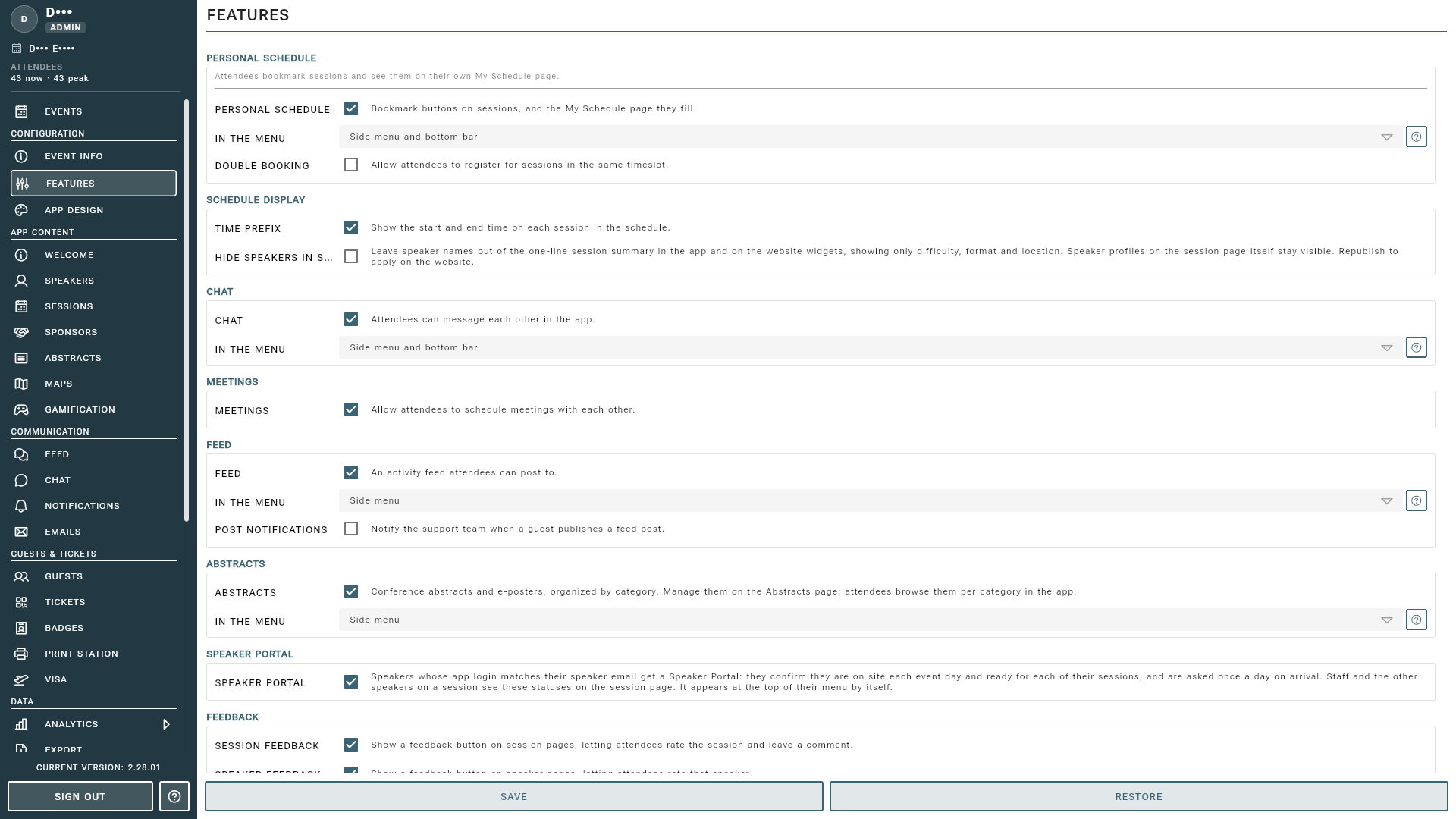
The Features page is where you decide what your attendees can do in the app. Each feature has its own card with its switch, where it shows in the app’s menu, and its own options. Access it by selecting Features from the sidebar under the Configuration section.
In the Menu
Features with a page of their own (Personal Schedule, Chat, Feed, Abstracts, Digital Card and Lead Scanner) have an In the Menu choice on their card:
- Side menu: the page is listed in the menu attendees open from the top of the app.
- Bottom bar: the page gets a tab in the bar at the bottom of the screen.
- Side menu and bottom bar: both.
- Not in the menu: the feature stays on, but has no menu entry of its own.
flowchart LR
    F{"Feature<br>switched on?"} -- "No" --> X["Not in<br>the app"]
    F -- "Yes" --> M{"A place in<br>the menu?"}
    M -- "No" --> N["On, without a<br>menu entry"]
    M -- "Yes" --> S["<b>Shown in</b><br><b>the app</b>"]
A page only shows in the app when its feature is switched on and it has a place in the menu, so switching a feature on and choosing its place here is all it takes. The bottom bar holds four items besides MENU: once it is full, the bottom bar options are greyed out until you move something else to the side menu. The order of the menu items is set in App Design.
Personal Schedule
- Personal Schedule: attendees bookmark sessions and find them back on their own My Schedule page. One switch covers both the bookmark buttons and the page.
- Double Booking: allow attendees to register for sessions that take place at the same time. Leave this off to prevent clashes.
Schedule Display
- Time Prefix: show the start and end time on each session in the schedule.
- Hide Speakers in Session Summary: leave speaker names out of the one-line summary under each session, in the app and on your website widgets. The speakers stay visible on the session page itself. Republish to apply this on your website.
Chat, Meetings and Feed
- Chat: attendees can message each other in the app.
- Meetings: attendees can schedule meetings with each other.
- Feed: an activity feed attendees can post to. Post Notifications notifies your support team whenever a guest publishes a post.
Abstracts
Conference abstracts and e-posters, organized by category. Manage them on the Abstracts page; attendees browse them per category in the app.
Speaker Portal
Speakers who sign in to the app with their speaker email get a Speaker Portal: they confirm they are on site each event day and ready for each of their sessions. Staff and the other speakers on a session see these statuses on the session page. The portal appears at the top of their menu by itself.
Feedback
- Session Feedback: a feedback button on session pages, so attendees can rate the session and leave a comment.
- Speaker Feedback: a feedback button on speaker pages, so attendees can rate that speaker.
- Rate Speakers in Session Feedback: also ask attendees to rate the speakers when they give session feedback. Turn it off to collect a score for the session alone.
Digital Card & Lead Scan
- Digital Card in / Lead Scanner in: where each page shows in the app’s menu.
- Restrict to Whitelist: only the attendees on the whitelist get the Digital Card and the Lead Scanner, for example your exhibitors.
- Whitelist: the attendee emails or IDs that keep access while the restriction is on, separated by commas.
- Badge QR Code: a badge QR code button on the Digital Card page, holding only the attendee’s email, for use with external systems.
Where the other settings went
- Time zone, Hidden, Code Entry and the event code are on Event Info, with the rest of your event’s details.
- The external ticket note is on the Tickets page, under TICKET NOTE.
- Guest imports and data feeds are on Connectors.
Tips
- Switch on only the features your event will actually use: every page you leave out makes the rest easier to find.
- Put the two or three pages attendees use most in the bottom bar, and everything else in the side menu.
- Enable Double Booking only if your programme intentionally lets attendees be in several sessions at once, for example workshops with open entry.