Documentation
Orders
Track ticket orders, view details, resend emails, and issue refunds.
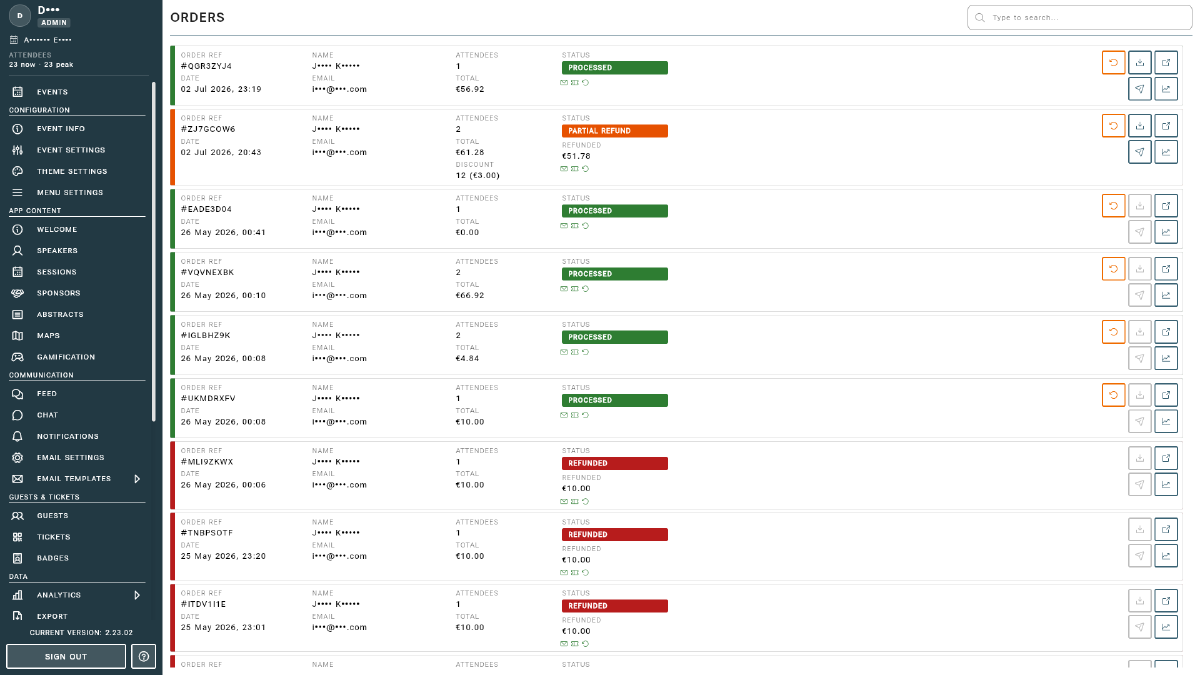
The Orders page lists every purchase made through your registration form. Open it from Orders under the Sales section of the Management Console sidebar. Each order shows the buyer, what they paid, and the current fulfilment status at a glance.
Reading an Order
Every order card shows:
- Order Ref and Date: the order reference number and when it was placed.
- Name and Email: the buyer’s billing details.
- Attendees: how many attendees are covered by the order.
- Total: the amount charged, including any Discount code applied.
- Status: the current state of the order (see below).
- Email status icons: at-a-glance indicators for whether the confirmation email was sent, delivered, or bounced, whether the ticket email was sent, and whether a refund email went out.
Order Statuses
- PENDING: payment has not completed yet.
- PROCESSED: payment succeeded and the order is fulfilled.
- REFUND INITIATED: a full refund has been requested and is processing.
- PARTIAL REFUND INITIATED: a partial refund has been requested and is processing.
- REFUNDED: the order has been fully refunded.
- PARTIAL REFUND: part of the order has been refunded.
Order Actions
Each order provides quick actions:
- View Details: open the full order, including line items and attendee information.
- View Email Logs: inspect the delivery history of every email tied to the order.
- Issue Refund: open refund management to refund all or part of the order. This is available to admins and moderators on orders that have been processed.
Tip
Refunds are processed through Stripe and can take several days to appear on the buyer’s statement. The order status updates automatically as Stripe confirms the refund.
Reporting
For revenue totals, Stripe fees, and estimated payouts across all orders, see the Financial Report.