Menu Customization
How to customize the order and visibility of menu items in the app.
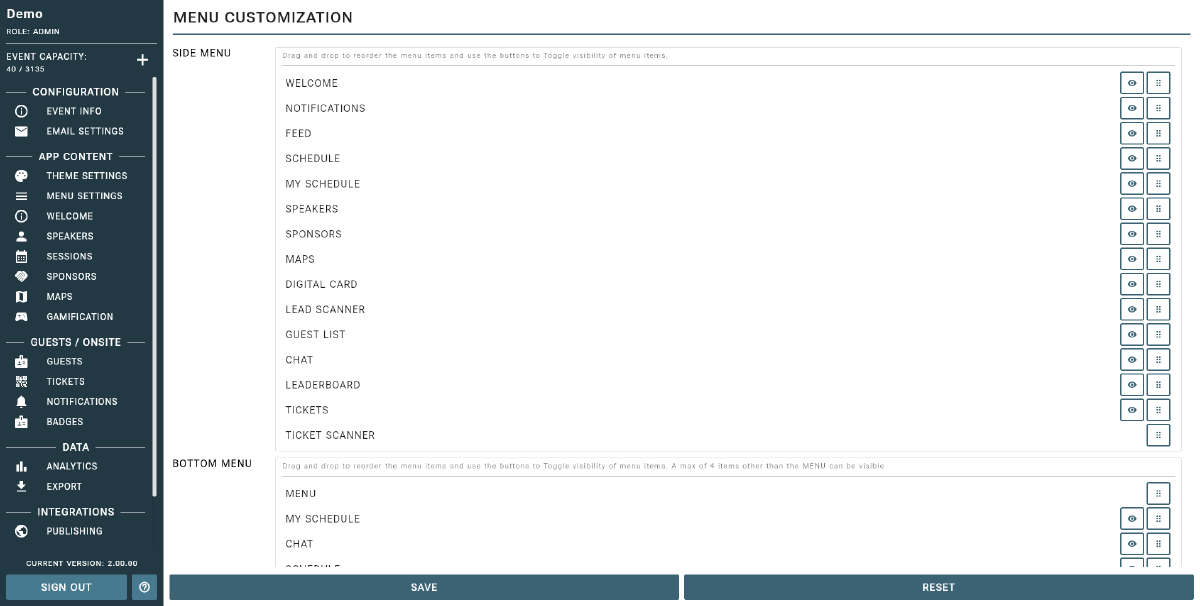
Event Vault gives you full control over the app’s navigation to tailor the attendee experience. The app has two navigation areas you can customize:
- Side Menu — the main navigation drawer, accessed by tapping the menu icon. Contains all available sections.
- Bottom Menu — the tab bar pinned to the bottom of the screen for quick access to the most important sections.
Available Menu Items
The following items can be shown or hidden in both menus:
- Welcome — the customizable welcome and home screen for your event.
- Profile — the attendee’s own profile and digital business card.
- Notifications — the attendee’s push notification history.
- Feed — an event news and updates feed.
- Schedule — the full event schedule with session filtering by track.
- My Schedule — the attendee’s personal list of bookmarked sessions.
- Speakers — the speaker directory with bios and social links.
- Sponsors — the sponsor showcase organized by tier.
- Maps — interactive venue maps with markers.
- Digital Card — the attendee’s NFC/QR digital business card for networking.
- Lead Scanner — scan attendee QR codes for lead capture (used by exhibitors and staff).
- Guest List — the networking list of all event attendees.
- Leaderboard — gamification rankings for the treasure hunt.
- Leaderboard Scanner — scan QR markers to earn points in the treasure hunt.
- Chat — event support chat and attendee direct messaging.
- Tickets — the attendee’s event tickets and check-in status.
Reordering Menu Items
Drag and drop menu items in the Menu Customization section to set the order that best fits your event. Items higher in the list appear first. For the Bottom Menu, only the top items are shown as tabs.
Hiding Menu Items
Toggle any menu item off to hide it from attendees. Hidden items are not removed — they simply are not shown in the app. You can re-enable them at any time.
Tip
Menu customization lets you simplify the app and highlight only the features that matter for your event.
Tips
- Place your most-used features (Schedule, Speakers, Tickets) at the top of the menu and in the Bottom Menu tabs.
- Hide features you are not using to avoid attendee confusion.
- Enable the Lead Scanner only for events where exhibitor lead capture is relevant.
- You can update menu settings at any time as your event evolves.