Event Settings
How to configure your event's details, branding, and feature settings.
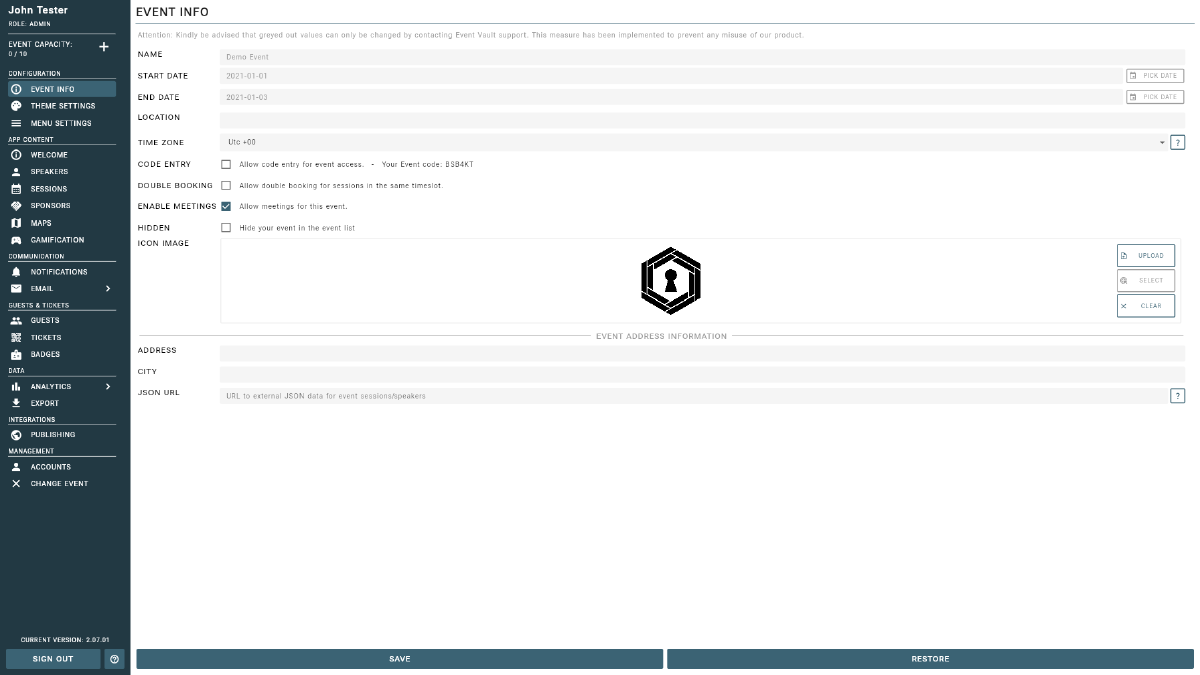
The Event Settings page is your central hub for configuring all aspects of your event — from basic details and branding to feature toggles and email configuration. Access it by selecting Event Info from the sidebar in the Management Console.
Basic Information
- Event Name — the name of your event, displayed throughout the app and console.
- Location — your venue name or city, shown to attendees in the app.
- Start Date / End Date — the event’s start and end dates and times.
- Timezone — select the correct timezone for your event. This affects all scheduled notification delivery times and session times displayed to attendees. Set this before scheduling any push notifications.
Branding
- Event Logo — displayed in the app header and on the welcome screen. Use a high-resolution image with a transparent background.
- Cover Image — the hero image shown on the app’s welcome and profile screens. Recommended size: 1200 x 800 px.
- Primary Color — the main accent color used across the app for buttons and highlights. Should match your event brand.
Email Configuration
Configure the sender details used for invitation and reminder emails:
- Support Email — attendees can contact this address for help with registration or event questions.
- Sender Name — the display name shown in attendees’ inboxes when they receive an invitation (e.g., “Event Vault Team” or your event name).
- Sender Email — the reply-to address for all outgoing event emails.
- Email Banner Image — a branded banner image shown at the top of invitation and reminder emails, reinforcing your event identity.
Feature Flags
- Code Entry — allow guests to self-register using a shared access code, without requiring a personal invitation.
- Double Booking — when enabled, attendees can register for sessions that overlap in time. Disable this to prevent scheduling conflicts.
- Meeting System — show or hide the one-on-one meeting request feature for attendees.
- Show Event — toggle the overall visibility of the event. Hide the event while it is being set up, then make it visible when you are ready for attendees to access it.
Tip
Changes to Event Settings take effect immediately in the app. Review your settings before sending invitations.
Tips
- Set your Timezone before scheduling push notifications to avoid unexpected delivery times.
- Use a high-quality Cover Image (recommended 1200 x 800 px) for a professional first impression in the app.
- Test your invitation email sender configuration by sending a test invitation before your event launch.
- Use Code Entry for open events where you want to minimise administrative overhead.
- Keep Show Event disabled while configuring your event, then enable it when everything is ready.